Android Maps: Fixing the blank screen in production
The map worked in development. It was blank in production. Fixing it took many sessions, three API key fingerprints, and a lesson about Google Play App Signing.
 Viral Parekh · 7 min read
The Setup
The Android App has a map tab. It shows a Google Map with pins for every activity location near the user. In development — Android Studio, running on the emulator — it worked fine. Tested on a real Google Pixel 10 Pro device — it worked fine. Zoom controls appeared, pins were in the right places. Everything looked good.
Then a user reported seeing blank maps in the Android App. I didn't have my Android device handy so I asked Claude to check if there is anything in Maps view that could be failing. Initial check returned everything fine. Once I got my device I checked it myself and Maps was loading fine for me. Later I installed the production build on my Pixel and opened the map tab. Blank. Completely white. No tiles, no terrain, no pins: nothing but the Google logo and the zoom buttons. No error message. No crash. Just silence.
What followed took many sessions to resolve. Here's the full arc.
The Blank Map
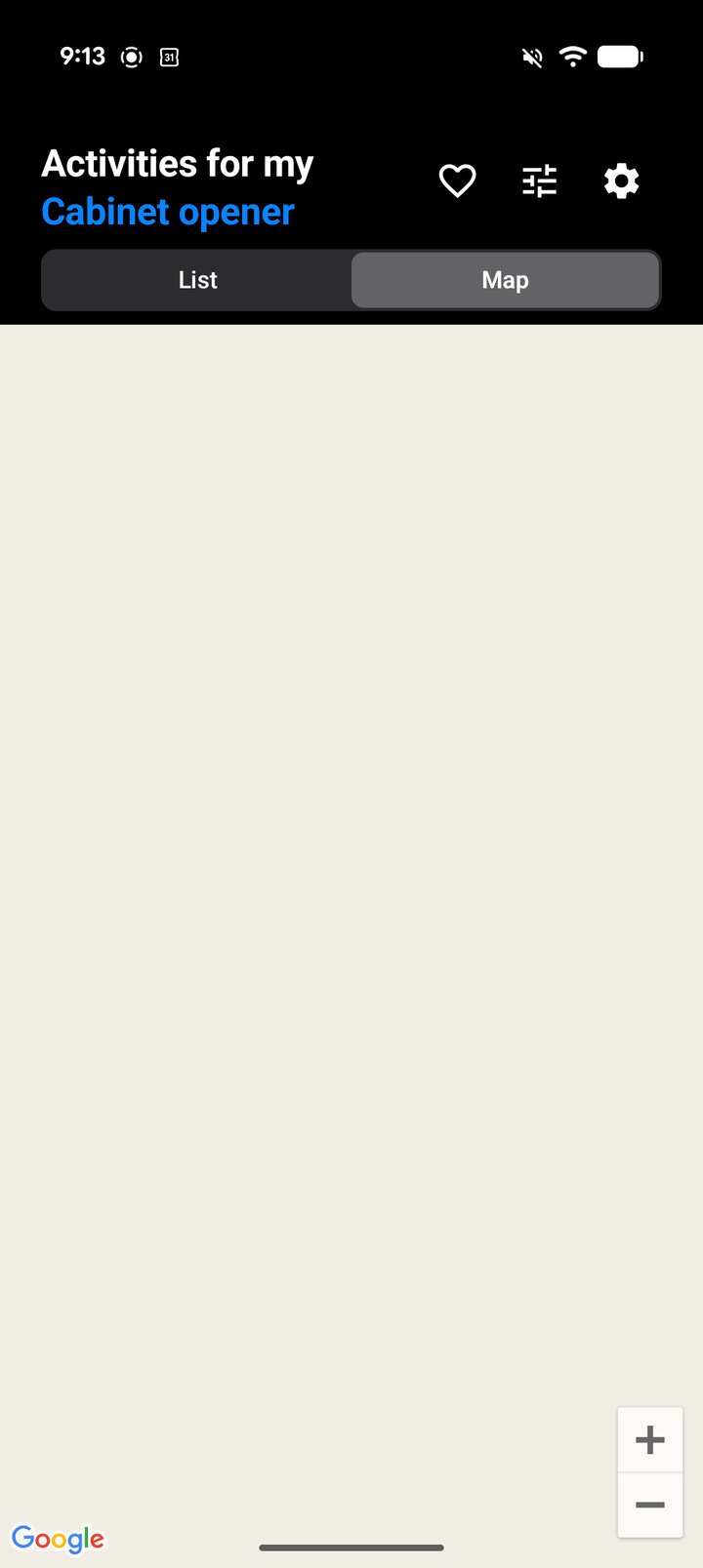
The Silent Bug
The first place I looked was AroundMeMapScreen.kt. The map has a 12-second timeout: if tiles haven't loaded by then, it sets authError = true and is supposed to show an overlay explaining what went wrong.
The overlay code was there. The problem was one extra condition:
- if (authError && BuildConfig.DEBUG) {
+ if (authError) {
+     if (BuildConfig.DEBUG) {
          // GCP Console instructions for developers
+     } else {
+         Text("Map is temporarily unavailable. Please try again later.")
+     }
  }
The && BuildConfig.DEBUG meant the overlay only appeared in development. In production, authError became true after 12 seconds, but BuildConfig.DEBUG is always false — so the condition was always false. Users saw nothing at all.
The code comment even said "in production this never appears (tiles always load with a valid unrestricted key)." That assumption was wrong. I added a build guard (Layer 5b in the Android build system) that now fails the build if this pattern ever reappears in any Kotlin file, and a CLAUDE.md rule:
BuildConfig.DEBUG may only choose how much detail to show — never whether to show anything at all.But fixing the overlay display wasn't the end of it. The map was still blank.
Wrong Fingerprint
I looked at GCP Console. The Maps SDK for Android was already in the API restrictions list. That wasn't the issue.
The issue was lower on the page: the Android App restrictions had a specific package name and SHA-1 fingerprint. And the fingerprint registered there was BF:E7:Y8.... — the debug certificate. My Pixel has the production App, signed with the release keystore, which has a completely different fingerprint: 14:62:X9.....
Google saw a certificate it didn't recognize and silently rejected the key. No error. No log entry. Just blank tiles.
I added the release keystore SHA-1 to GCP Console. I also added a Gradle doLast block to bundleRelease that reads the keystore, runs keytool, and prints a reminder at the end of every release build:
🔑 Release SHA-1: 14:62... — have you registered this in GCP Console?
Map was still blank.
The Google Play Twist
Key match confirmed. Billing confirmed. Both checked out. Then one more possible cause surfaced: Google Play App Signing.
When you submit an AAB to the Play Store (as opposed to a side-loaded APK), Google Play re-signs the app with its own certificate before delivering it to users' devices. The signing key I used — what I call the "upload key" — is only used to authenticate the upload to Play. The certificate on the device is Google Play's own.
This means the SHA-1 that matters for production map tiles is not my upload key's SHA-1. It's the Play signing certificate SHA-1 — a completely different value that Google manages and controls.
The fingerprint GCP Console needed was the Play signing cert. Which I didn't have.
Where Did App Signing Move?
To get the Play signing cert SHA-1, I went to Google Play Console. The path I had was: Release → Setup → App signing. That path no longer exists. Google moved it to App integrity. Then it moved again: App integrity now shows "App Integrity settings have moved — Go to Protected with Play." Three clicks to find what used to be one click.
The current path (as of September 2026):
Play Console → App integrity → "Go to Protected with Play"
The SHA-1 to copy is under "App signing key certificate" — not "Upload key certificate."
Extracting the Cert via adb
To get the cert without relying on Play Console navigation, I pulled the production APK directly from my phone and inspected the signing certificate:
# Get the APK path on the device
adb -d shell pm path com.banavu.blah

# Pull it
adb -d pull "/data/app/~~/com.banavu.blah-xxx/base.apk" /tmp/production.apk

# Read the signing cert
JAVA_HOME="/Applications/Android Studio.app/Contents/jbr/Contents/Home"
"$JAVA_HOME/bin/java" -jar "$HOME/Library/Android/sdk/build-tools/36.0.0/lib/apksigner.jar" \
  verify --print-certs /tmp/production.apk | grep "Signer #1.*SHA-1"
Signer #1 certificate SHA-1 digest: a019.... That was the value GCP Console needed. Completely different from my upload key's 14:62....
One note on the tooling: the apksigner shell wrapper at build-tools/36.0.0/apksigner fails without system Java even when Android Studio's JBR is present. The fix is java -jar apksigner.jar using the JBR directly.
Pins appear but no Tiles
After I added the Play signing cert to the API key in GCP Console, the map changed, but only halfway. The pins came back, red markers spread across the Bay Area, and tapping one showed its name and how many activities it had. Underneath them there was still no map: no streets, no water, no place names.
That's because pins and tiles come from two different places. The App draws the pins itself, from our own Firestore data, so no Maps API key check is involved. The tiles, the map images underneath, are downloaded from Google's tile servers, and those servers check the API key's Android restrictions (the package name plus the signing certificate's fingerprint) on every request. One can work while the other fails.
Claude's first read was that the Play signing cert still wasn't registered. I'd already added it. The real cause was timing: a newly added fingerprint takes a few minutes to take effect on Google's side, and the App was still holding on to the failed tile responses it had cached.
The Pins-Only Map
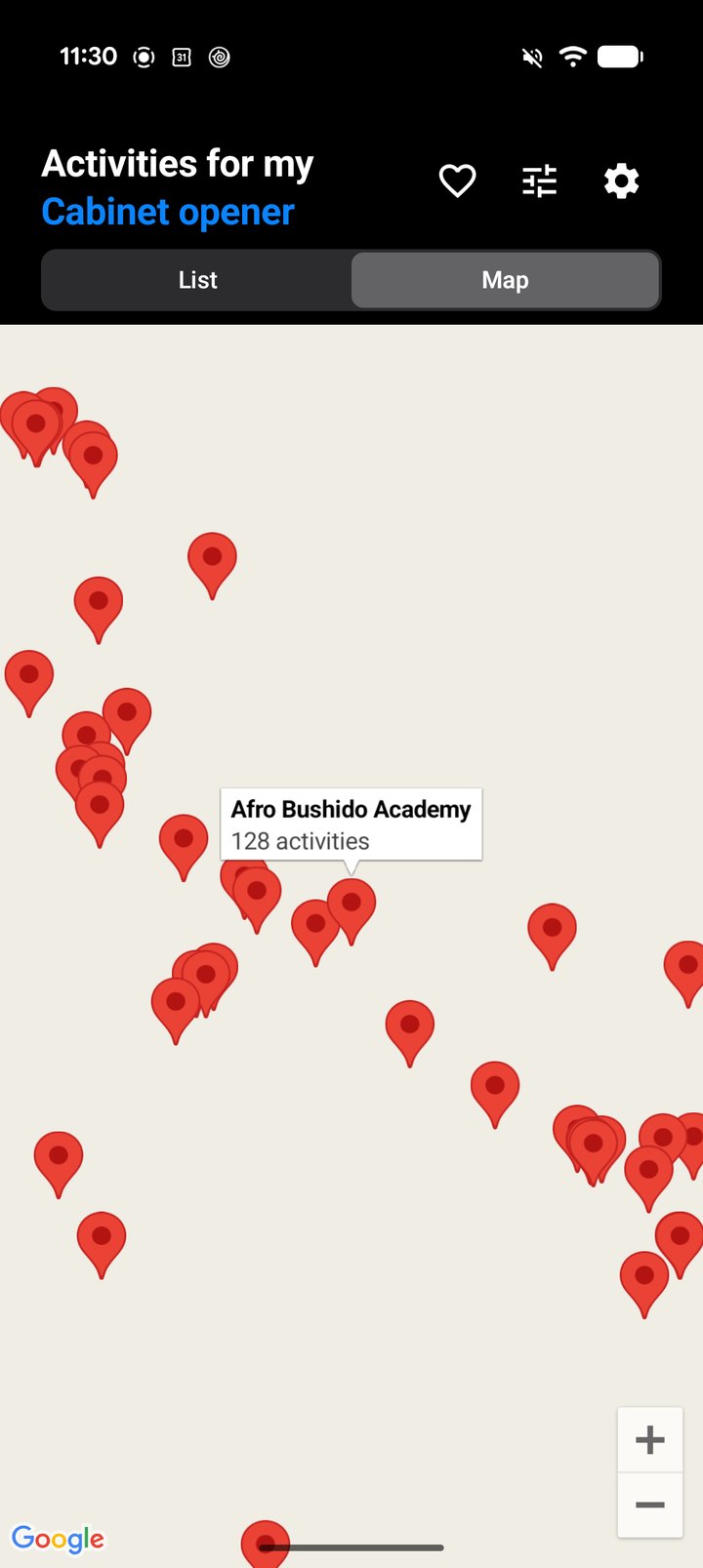
Finally the tiles appear
The last step needed no code at all. I waited a few minutes for the new fingerprint to take effect, then force-closed the App (not just switched away from it) and opened it again.
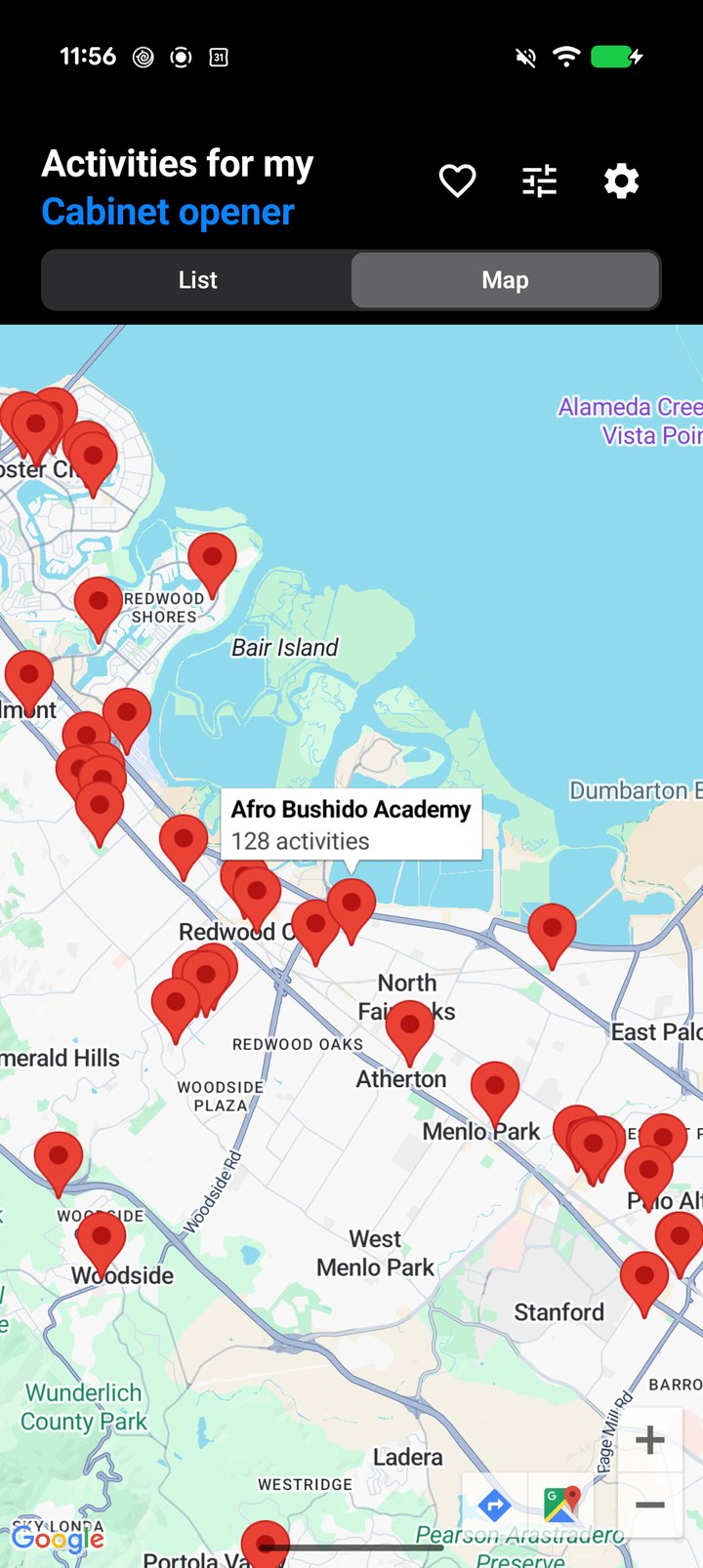
Force-closing matters because it throws away the tile responses the App had cached. Going back to an App that is still running reuses them, failed ones included. When the App reopened, the tiles loaded under the pins: streets, the Bay, the city names.
So the complete fix was the Play signing cert's fingerprint in the API key's Android restrictions, a few minutes' wait, and a fresh start of the App. Many sessions from the first report to a working map.
The Working Map
The Three Fingerprints
The root insight from the whole arc: there are three distinct certificates in play for a Google Play–distributed Android app, and all three need to be registered in GCP Console for Maps to work across all contexts:
| Certificate | Used by | Needed for |
|---|---|---|
| Debug cert | Android Studio / emulator | Development builds |
| Upload cert | Authenticating AAB uploads to Play | Play Store submission (not Maps) |
| Play signing cert | Every device running the production App | Production Maps tile auth |
The Play signing cert is the only one that matters for production map tiles — but it's also the hardest to find. Firebase only registers the debug cert when you add the Android app. Everything else requires manual steps.
Learnings
- Google Play App Signing means the upload cert is not the device cert. Apps delivered via Play Store are re-signed by Google. The SHA-1 on users' devices is Google Play's signing cert — get it by pulling the APK from a production device and running
apksigner verify --print-certs. - Never gate an error-state UI on
BuildConfig.DEBUG. That condition is always false in production. Users see nothing. The debug flag may choose how much detail to show — not whether to show anything at all. - Silent failures are the hardest bugs. The map didn't crash. The App didn't log an error users could see. It just showed nothing. Each session peeled back one layer: silent overlay → wrong cert → Play re-signing. The only signal was a blank screen.
- Development success doesn't imply production success for Maps. The emulator uses the debug cert. Development builds use the upload cert. Only a production APK on a real device uses the Play signing cert. All three must pass before a Maps integration is genuinely verified.
- Always use
adb -dfor USB-targeted commands. If the device is on both USB and wireless ADB, bareadbfails with "more than one device/emulator." Use-dfor USB,-efor emulator, or-s <serial>for an explicit target. This came from explicit feedback.